

Setting up Knowledge Base domain

Learn how to set your own Knowledge Base domain
Knowledge Base by default is visible as a link in User.com domain (for example, https://support.user.com/1T1nnM/knowledge-base/root/). You can easily change that and create your own custom link.
To configure your own Knowledge Base link:
Create a custom CNAME record in your domain provider
Configure the Knowledge Base domain in your User.com application
IMPORTANT: Do the first step first, as the configuration will not work otherwise. Please contact us if you've encountered any problems.
1. Create a custom CNAME record
At your supplier's website (for example Cloudflare, Freenome etc.) you need to add a CNAME record directing to custom-domain.user.com (just as it stands: "custom-domain"). After having set that up, we will automatically generate SSL certificate.
Example:
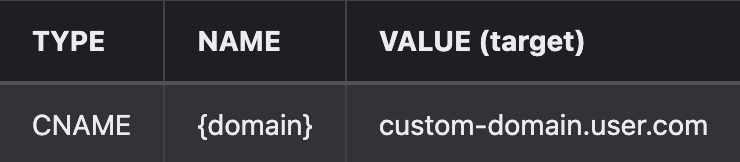
So, basically:
Name - is your subdomain, where you want to have your knowledge base
Value - is custom-domain.user.com
2. Configure the domain
Go to Settings -> App Settings -> Additional -> Knowledge base settings.
Choose "Change your own domain" option and in the "Subdomain" input type: docs.<name_of_your_domain>
This is where your documentation will be stored, and "docs" is just an example of a possible subdomain of your website (thus you'll see "docs" as a subdomain in the next step).
